
APP LOVIN MEDIATION ADAPTER
AppLovin Dashboard Configuration
Step-by-step:
Log into AppLovin MAX
Go to your app > Mediation > Manage Networks
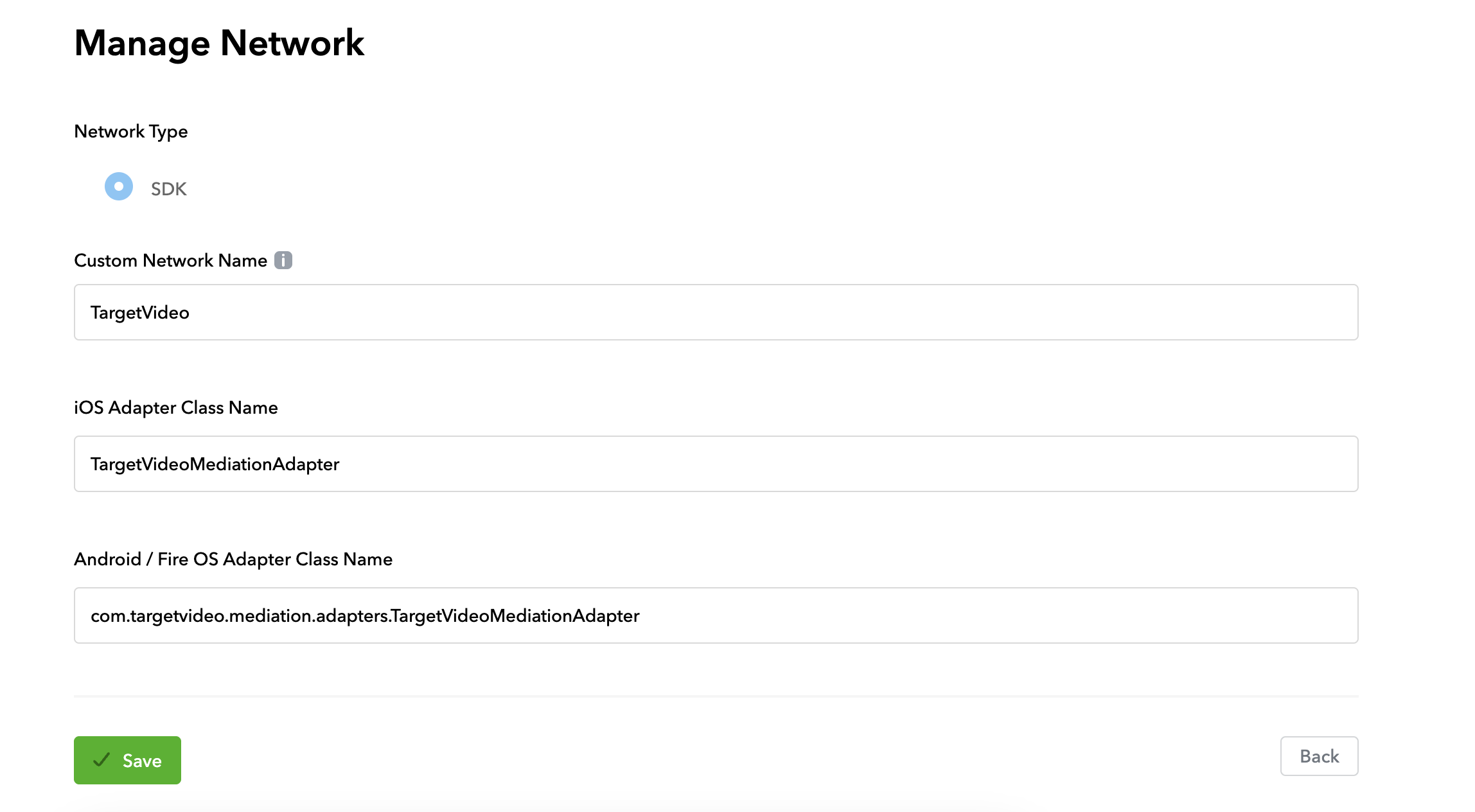
Click “+ Custom Network”
Fill out the form as follows:
Add a Rewarded Ad Unit for this network
Connect it to the newly added "TargetVideo" custom network
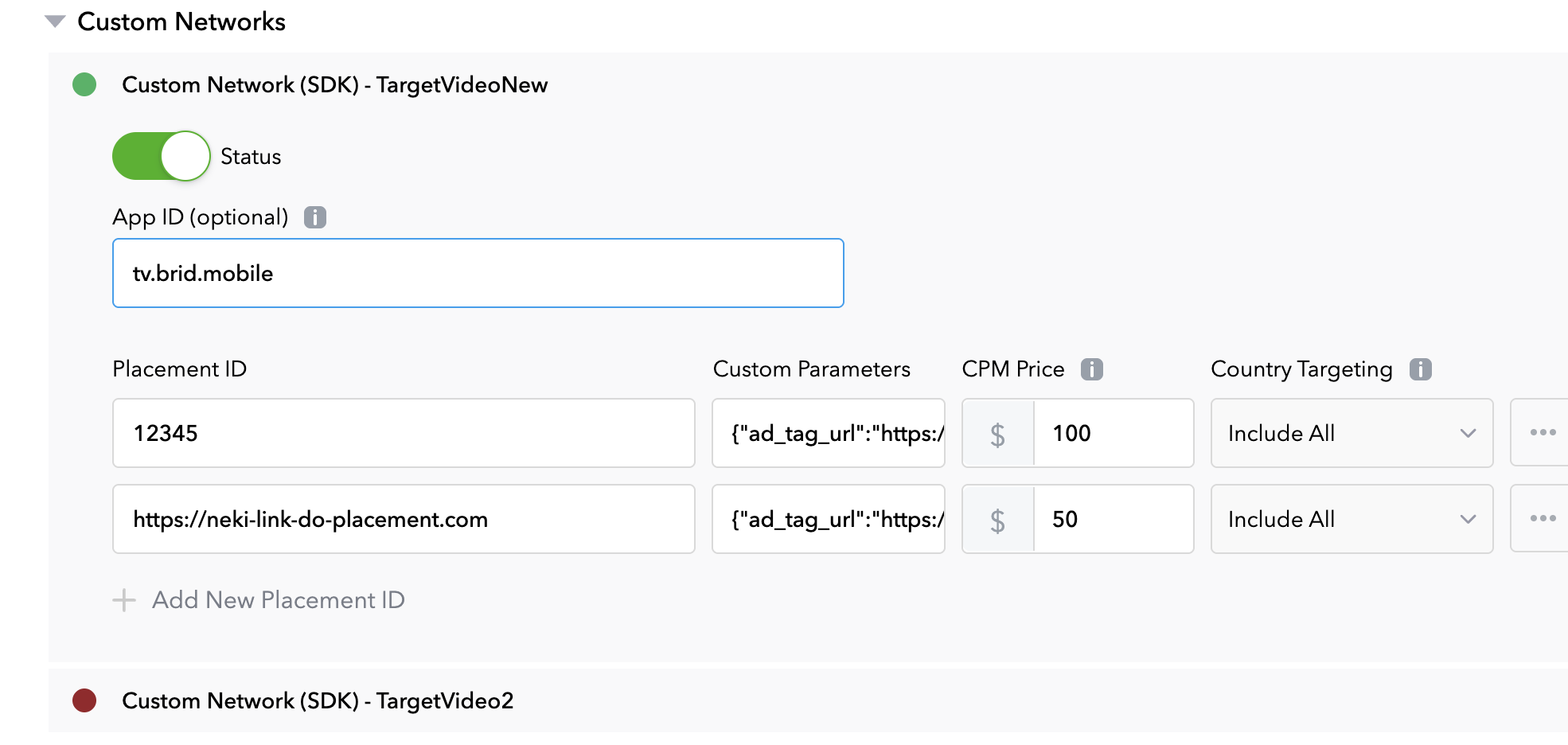
📡 Placement ID & Custom Parameters
To integrate with the TargetVideo ad network, you will need a valid Placement ID and optionally, custom targeting parameters.
These values are passed internally via AppLovin’s custom network configuration and are required for proper ad serving.
ℹ️ To obtain your Placement ID and custom parameters, please contact TargetVideo support at:
📧 mobile.dev@target-video.com
Once you receive your credentials, you can configure them in the AppLovin dashboard under Custom Network Settings as key-value pairs.
Logging & Debugging
TargetVideo mediation adapter logs detailed information in Logcat to help with debugging:
🎬 ExoPlayer lifecycle events
📺 Google IMA AdEvent and AdErrorEvent
✅ All VideoAdPlayer method calls
🔗 Media URLs from the ad response
Filter logs using the tag:
TargetVideoAdapter
Player controls are not shown — the video runs in fullscreen without UI (autoplay experience).
The adapter requires internet access and the INTERNET permission.
Reward events are delivered only after the video has completed, as per IMA and AppLovin reward rules.
Uses AdDisplayContainer and AdsLoader under the hood via IMA SDK.
💬 Support
For integration support or to report issues: